SurveyJS v3.0: Control PDF Appearance with Themes, Layouts, and Element Styles (Part 2)
TL;DR: SurveyJS v3.0 replaces one-dimensional PDF styling with three separate customization layers. Themes control colors and shadows. Layouts control spacing, sizing, typography, borders, and document density. The styles config API controls specific element types or individual pages, panels, questions, and choice items. This separation lets generated PDFs share the visual identity of your web forms without forcing screen-oriented layouts into a print document.
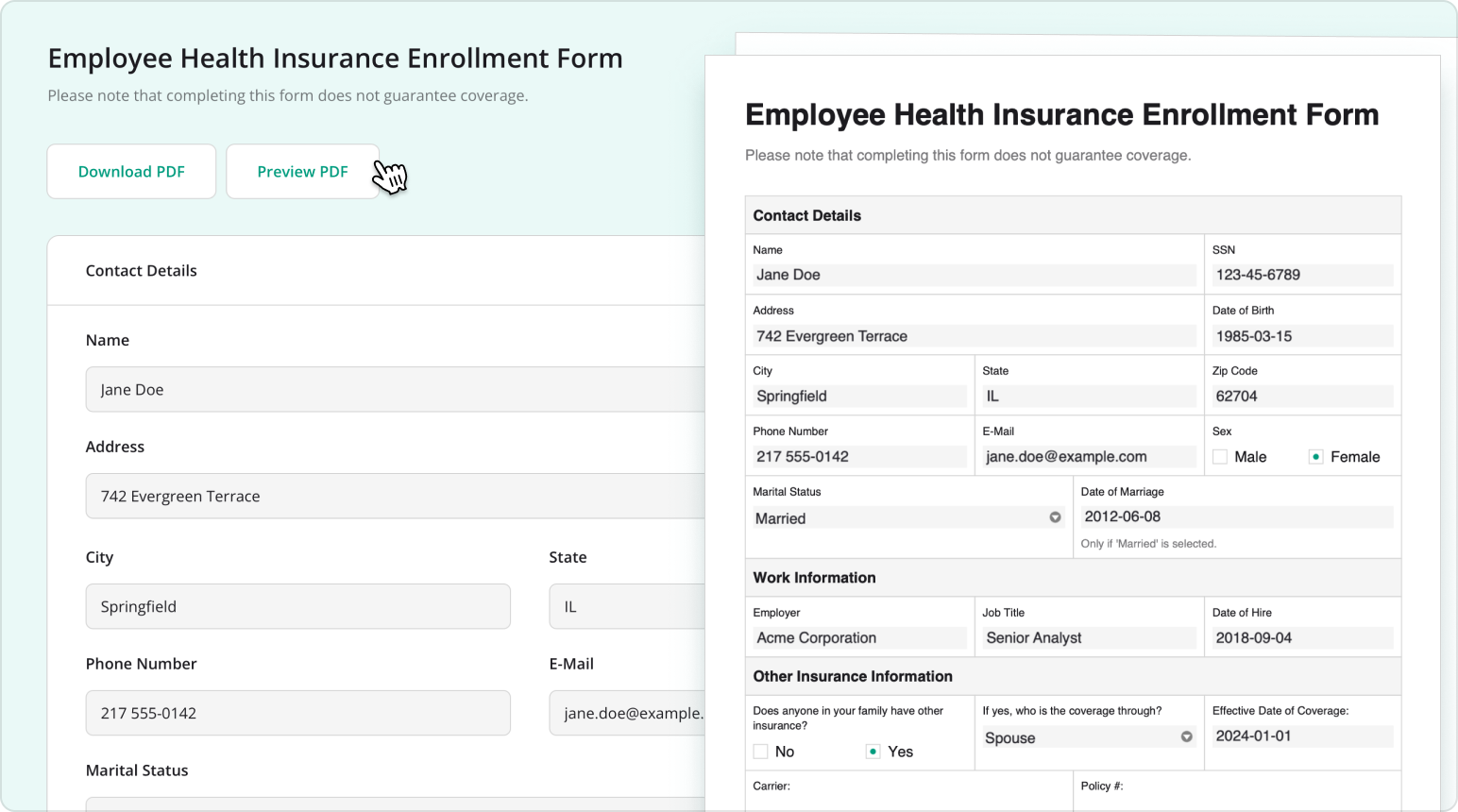
A web form and its PDF version represent the same content, but they do not follow the same layout rules.
On screen, generous spacing, large controls, rounded containers, and prominent shadows can improve usability. In a PDF, those same choices can increase the page count, waste paper, or make a data-heavy document harder to scan.
At the same time, the two outputs should not look unrelated. Brand colors, typography, heading hierarchy, and visual states should carry across from the web form to the generated document.
Treating all of these decisions as one theme creates a conflict. Either the PDF copies the web layout too closely, or it loses the visual identity of the original form.
SurveyJS v3.0 resolves this problem by separating PDF appearance into three layers:
- Themes – Define colors and shadows.
- Layouts – Define dimensions, typography, and document density.
- Styles config – Applies targeted overrides to element types or individual elements.
Each layer controls a different part of the document, and the three can be combined.
One Form Schema, Different Output Rules
SurveyJS PDF Generator creates PDF forms from the same JSON schema used by Form Library:
import { SurveyPDF } from "survey-pdf";

const surveyJson = {
  title: "Customer Feedback",
  elements: [
    {
      type: "rating",
      name: "satisfaction",
      title: "How satisfied are you with our service?",
      rateMin: 1,
      rateMax: 5
    },
    {
      type: "comment",
      name: "feedback",
      title: "Additional comments"
    }
  ]
};

const surveyPdf = new SurveyPDF(surveyJson);

surveyPdf.data = {
  satisfaction: 5,
  feedback: "The support team resolved the issue quickly."
};

surveyPdf.save();
The schema defines the document structure: pages, panels, questions, choices, titles, descriptions, and validation rules. Appearance is applied separately.
This means you do not need to duplicate or modify the form schema to produce a compact printable document, a spacious presentation copy, or a branded PDF for a specific customer.
Why PDF Themes and Layouts Are Separate
SurveyJS v3.0 uses the same CSS-based design token system across Form Library, Survey Creator, Dashboard, and PDF Generator.
For PDF Generator, however, theme and layout variables have different responsibilities.
A theme controls brand colors, backgrounds, text, borders, status colors, shadows, and elevation effects.
A layout controls font family, font sizes, line heights, spacing, element dimensions, border widths, corner radii, indentation, and other dimensional properties.
This separation is deliberate. Colors usually need to remain consistent across web and PDF outputs. Dimensions often need to change. A web form can afford larger fields and wider gaps. A PDF may need smaller spacing and tighter typography to fit a complete record on fewer pages.
In practical terms, you can keep the same brand theme while applying different layouts for different export scenarios.
Apply the Same Theme to Web Forms and PDFs
PDF Generator supports the same theme objects as other SurveyJS products:
import { LayeredLight } from "survey-core/themes";
import { SurveyPDF } from "survey-pdf";

const surveyPdf = new SurveyPDF(surveyJson);

surveyPdf.applyTheme(LayeredLight);
surveyPdf.save();
For PDF output, applyTheme() uses the theme's color and shadow settings. Dimensional theme properties are not used to determine the PDF layout.
// survey is your existing Model instance
survey.applyTheme(LayeredLight);
surveyPdf.applyTheme(LayeredLight);
The form and PDF now use the same color system. Their dimensions remain independently configurable.
Apply a Theme to a PDF Form Demo
Customize PDF Colors with Design Tokens
You can create a custom theme object and pass it to applyTheme():
const corporateTheme = {
  cssVariables: {
    "--sjs2-color-project-brand-600": "#085DE5",
    "--sjs2-color-bg-basic-primary": "#FFFFFF",
    "--sjs2-color-fg-basic-primary": "#1F2937",
    "--sjs2-color-border-neutral-primary": "#CBD5E1"
  }
};

surveyPdf.applyTheme(corporateTheme);
Because these variables belong to the shared SurveyJS design token system, the same object can be applied to Form Library, Survey Creator, Dashboard, and PDF Generator.
This provides visual alignment across form creation, form completion, response analysis, and PDF export. PDF-specific dimensions remain outside the theme and are handled through layouts.
Create a Custom Theme for a PDF Form Demo
Use the Monochrome Light Theme for Printing
A branded color theme is not always the best option for printed output. Colored backgrounds, low-contrast borders, and subtle gray text may reproduce poorly on black-and-white printers and consume unnecessary ink.
SurveyJS v3.0 includes a print-optimized Monochrome Light theme. It uses high-contrast black-and-white colors intended to keep printed forms readable even when printer output is weak.
import { MonochromeLight } from "survey-core/themes";
import { SurveyPDF } from "survey-pdf";

const surveyPdf = new SurveyPDF(surveyJson);

surveyPdf.applyTheme(MonochromeLight);
surveyPdf.save();
Use this theme when the document is primarily intended for physical printing rather than digital distribution. You can apply it to the same schema that normally uses a branded theme on the web.
Choose Between Compact and Spacious PDF Layouts
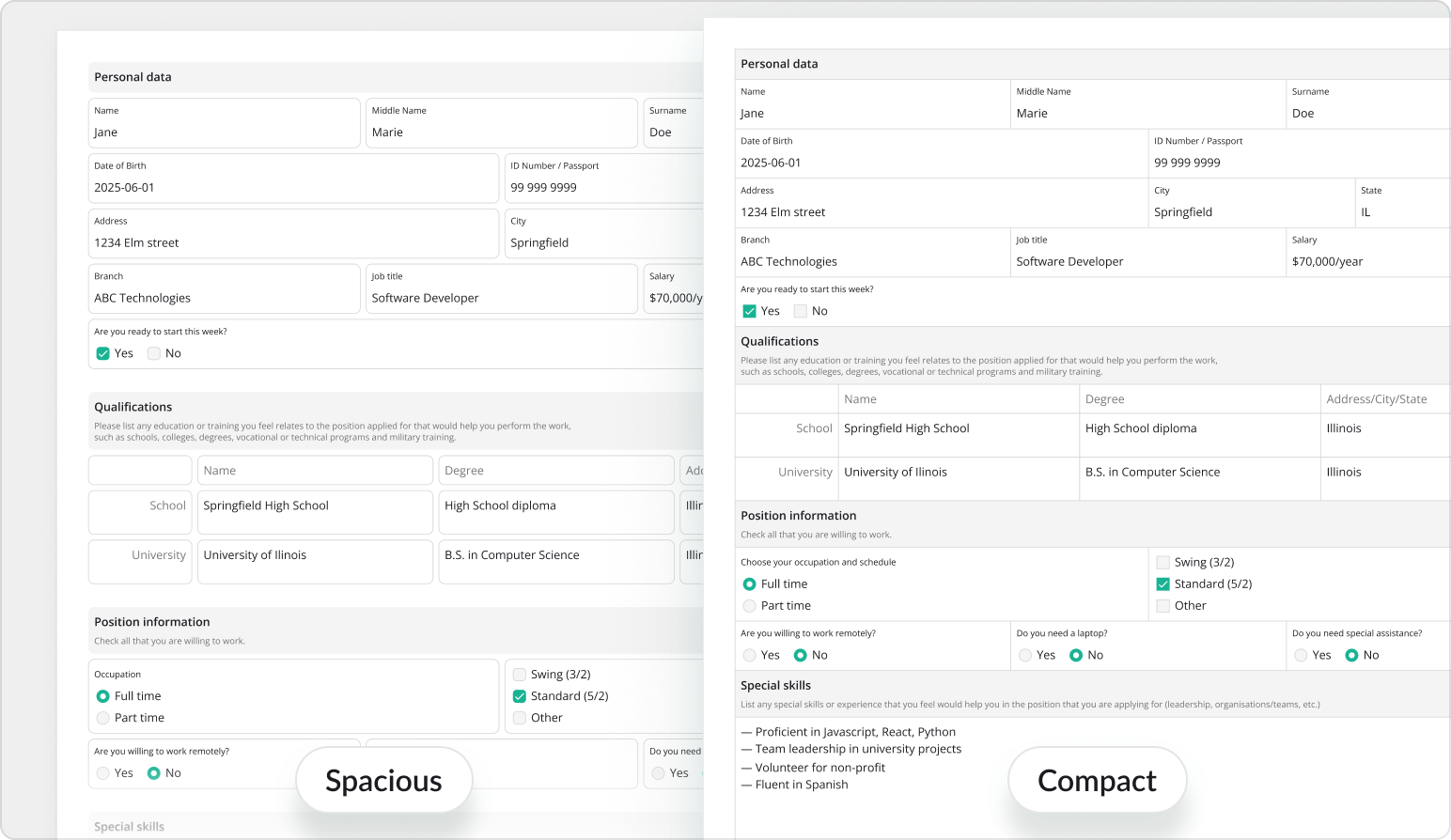
SurveyJS v3.0 includes two predefined PDF layouts:
- Compact – Reduces spacing and visual dimensions to fit more content on each page.
- Spacious – Increases spacing and proportions to improve readability and presentation.
The Compact layout is applied by default. It is a practical choice for long questionnaires, data-heavy forms, completed application records, administrative documents, high-volume printing, and documents where page count matters.
To apply the Spacious layout, import it from survey-pdf/layouts and call applyLayout():
import { SurveyPDF } from "survey-pdf";
import { Spacious } from "survey-pdf/layouts";

const surveyPdf = new SurveyPDF(surveyJson);

surveyPdf.applyLayout(Spacious);
surveyPdf.save();
The Spacious layout is better suited to short forms, customer-facing documents, reports intended for on-screen reading, and documents where presentation matters more than page count.
The schema and data remain unchanged. Only the dimensional configuration differs.
Enable the Spacious Layout in a PDF Form Demo
Create a Custom PDF Layout
Predefined layouts are configuration objects made from PDF layout variables.
To create a custom layout, define the variables you want to override and pass the object to applyLayout():
const customLayout = {
  "--sjs2-typography-font-family-text": "Noto Serif",
  "--sjs2-pdf-border-width-question":
    "var(--sjs2-border-width-x200)"
};

const surveyPdf = new SurveyPDF(surveyJson);

surveyPdf.applyLayout(customLayout);
surveyPdf.save();
By default, custom layout variables are applied over the Compact layout. To use Spacious as the base, pass it as the second argument:
import { Spacious } from "survey-pdf/layouts";

surveyPdf.applyLayout(customLayout, Spacious);
surveyPdf.save();
The two layout objects are deep-merged. Values in customLayout override the corresponding Spacious values, while all unspecified settings continue to come from Spacious.
Switch PDF Layouts at Runtime
Layouts can be selected at runtime just like themes:
import { Compact, Spacious } from "survey-pdf/layouts";

function exportPdf(format) {
  const surveyPdf = new SurveyPDF(surveyJson);
  surveyPdf.data = surveyData;

  surveyPdf.applyLayout(
    format === "presentation" ? Spacious : Compact
  );

  surveyPdf.save();
}
You can also combine layout selection with theme selection:
if (outputMode === "print") {
  surveyPdf.applyTheme(MonochromeLight);
  surveyPdf.applyLayout(Compact);
} else {
  surveyPdf.applyTheme(corporateTheme);
  surveyPdf.applyLayout(Spacious);
}

surveyPdf.save();
The first combination produces a dense, high-contrast print copy. The second produces a more spacious branded document.
Use Styles Config for Element-Level Customization
Themes and layouts define the document-wide appearance. SurveyJS v3.0 handles exceptions through the styles config API.
The SurveyPDF instance exposes a hierarchical style system with properties for SurveyJS element types, including survey, page, panel, question, dropdown, and radiogroup.
Use applyStyle() to apply overrides to every element of a given type:
const surveyPdf = new SurveyPDF(surveyJson);

surveyPdf.applyStyle({
  radiogroup: {
    spacing: {
      choiceGap: 10
    }
  },
  survey: {
    title: {
      fontColor: "#1F3A5F"
    }
  },
  page: {
    title: {
      fontColor: "#3F5F8A"
    }
  },
  panel: {
    title: {
      fontColor: "#6F86A6"
    }
  }
});

surveyPdf.save();
The question style acts as the default for all question types. A more specific style, such as radiogroup or dropdown, overrides it where applicable.
Keep Styles Synchronized with the Active Theme
To create theme-aware styles, pass a callback to applyStyle().
The callback receives two helper functions:
getColorVariable(name)resolves a color from the active theme.getSizeVariable(name)resolves a numeric size from the active layout or token system.
surveyPdf.applyStyle(
  ({ getSizeVariable, getColorVariable }) => ({
    radiogroup: {
      spacing: {
        choiceGap:
          getSizeVariable("--sjs2-base-unit-spacing") * 1.1
      }
    },
    survey: {
      title: {
        fontColor: getColorVariable(
          "--sjs2-palette-gray-800"
        )
      }
    },
    page: {
      title: {
        fontColor: getColorVariable(
          "--sjs2-palette-gray-600"
        )
      }
    }
  })
);
If the theme changes, the resolved colors change with it. If the base spacing changes, the Radio Button Group gap is recalculated from the new value.
Customize Individual PDF Elements During Generation
Type-wide styles are not enough when an override depends on a specific element or its data.
SurveyJS v3.0 exposes four PDF-generation events for individual styling:
Each event provides the element being rendered and its resolved style object. You can inspect the element and modify only the required properties.
surveyPdf.onGetItemStyle.add((_, options) => {
  if (options.question.name === "colors") {
    options.style.choiceText.fontColor = options.item.value;
    options.style.input.fontColor = options.item.value;
    options.style.input.borderColor = options.item.value;
  }
});
Only items in the colors question are affected. Other choice questions keep their existing styles.
Use Theme Variables in Individual Element Events
Individual style events also expose getColorVariable() and getSizeVariable():
surveyPdf.onGetItemStyle.add((_, options) => {
  if (options.question.name === "colors") {
    const color = options.getColorVariable(
      `--sjs2-palette-${options.item.value}-600`
    );

    options.style.choiceText.fontColor = color;
    options.style.input.fontColor = color;
    options.style.input.borderColor = color;
  }
});
This keeps dynamic styling connected to the active design token system. The same pattern can highlight unanswered questions, apply a warning style to high-risk responses, emphasize totals, or style selected choices according to their values.
Which Customization API Should You Use?
| Requirement | API |
|---|---|
| Apply brand colors across the PDF | applyTheme() |
| Use a black-and-white print theme | applyTheme(MonochromeLight) |
| Reduce page count | applyLayout(Compact) |
| Increase spacing and readability | applyLayout(Spacious) |
| Change the PDF font or dimensional variables | applyLayout(customLayout) |
| Style every question of a given type | applyStyle() |
| Derive type-wide styles from the active theme | applyStyle(callback) |
| Style one page, panel, question, or choice item | PDF style events |
| Derive an individual element's style from tokens | Style event helper functions |
The distinction is as follows:
- If the change is about visual identity, use a theme.
- If the change is about document dimensions, use a layout.
- If the change targets an element type or an individual element, use styles config.
Build Different PDF Outputs from the Same Form
Because themes, layouts, and styles are independent of the form schema, one form can produce several document variants:
function createPdf({ schema, data, theme, layout, styles }) {
  const surveyPdf = new SurveyPDF(schema);

  surveyPdf.data = data;
  surveyPdf.applyTheme(theme);
  surveyPdf.applyLayout(layout);
  surveyPdf.applyStyle(styles);

  surveyPdf.save();
}
The same schema and data can produce a compact internal record or a spacious branded customer copy by changing only the appearance configuration.
Brand Consistency Without Web-Layout Constraints
SurveyJS v3.0 does not treat PDF appearance as a single collection of unrelated style properties.
It separates three concerns that need to evolve independently:
- Themes preserve visual identity.
- Layouts adapt the document to print and presentation requirements.
- Styles config handles exceptions and data-dependent formatting.
This allows a PDF to remain visually aligned with the rest of a SurveyJS application while using dimensions appropriate for a fixed document.
You can apply the same brand colors to a web form and its PDF export, choose Compact or Spacious document proportions, and customize specific elements without duplicating the schema or maintaining a separate PDF template.
For the complete API and additional examples, view the PDF appearance customization documentation.